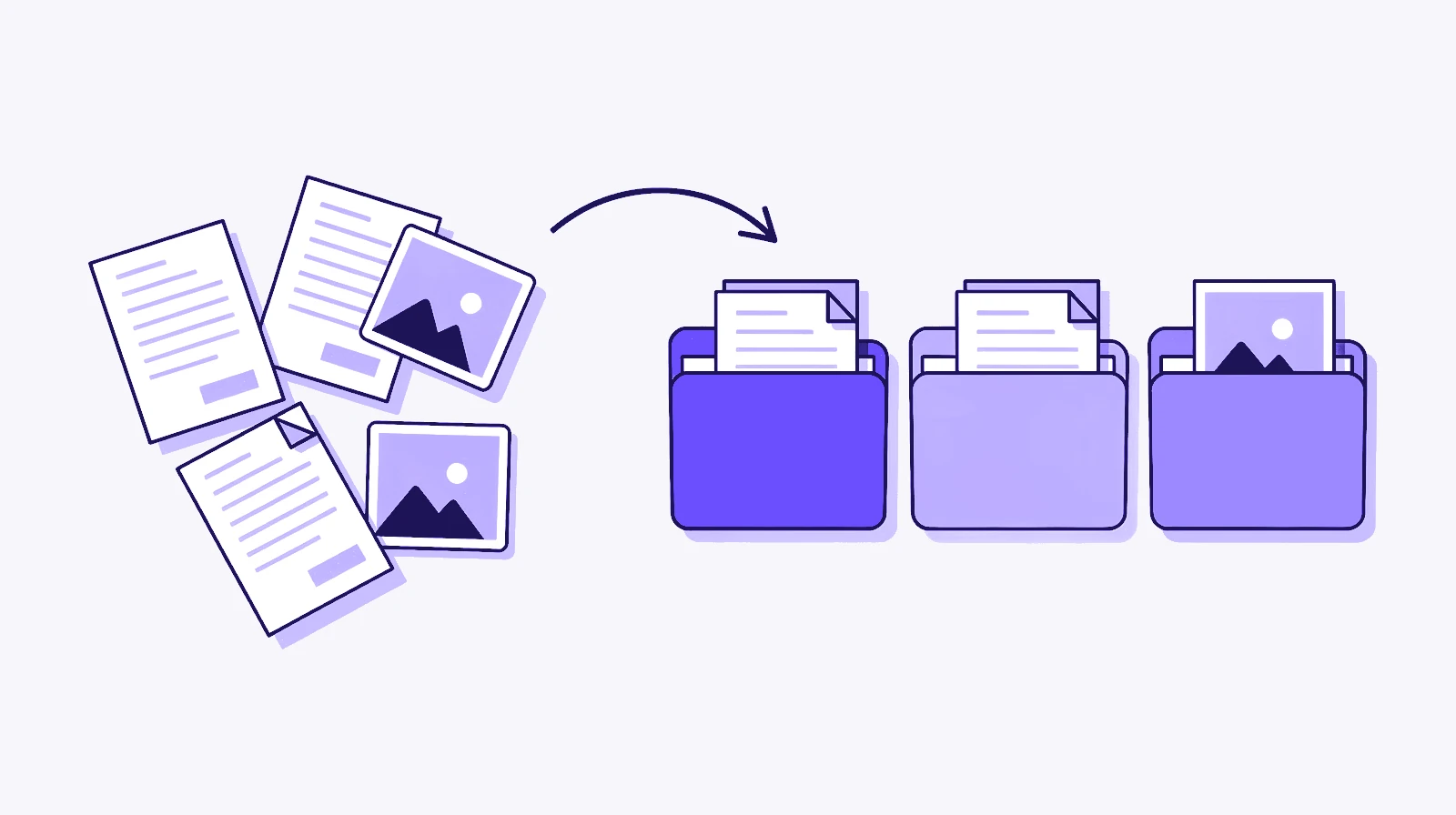
Downloads fills up quietly with installers, PDFs, images and zip files. Here's how to clear the backlog once, then set rules so new files sort themselves.
1. Clear the backlog
Download Footman, open it and add your Downloads folder. macOS will ask whether Footman may access Downloads, so choose Allow.
Then choose Clean Up and tick the tidy-ups you want. You can bin installers you haven't opened in 30 days, set aside files you haven't touched in a while, file screenshots and sort the rest into folders by kind. You see the list of files before anything moves. If you change your mind afterwards, the moves and trashed files from that clean-up can be undone in one go. Footman then offers to keep the folder tidy by turning those choices into rules.

2. Choose when to tidy
Each folder has a When to tidy setting. Footman can act as files land, on a schedule, or only when you ask. For Downloads, as files land works well. A schedule suits you better if you like to open a file before it's filed.
3. Add a few rules
Rules read like sentences. These are good ones to start with:
- If the extension is dmg and it was last opened more than 30 days ago, move it to the Trash.
- If it came from your bank's website and it's a PDF, move it to Documents › Statements.
- If it's an archive and hasn't been opened in a week, unpack it. Unpacking can't be undone.
- Sort everything else into subfolders by kind, so images, documents and archives each get their own.
Footman can also suggest rules for a folder. If you have Bertie, you can type what you want, such as "move PDFs from my bank into Statements", and he drafts the rule for you to check.
Footman waits for downloads to finish before a rule touches them, and leaves iCloud files that haven't been downloaded to your Mac where they are.
4. Check it's working
Footman's menu bar icon shows what it has just done. If a file ends up somewhere you didn't expect, open the activity log and put it back, then adjust the rule. Bertie can also tell you where a file went or why a rule didn't run. You can pause Footman from the menu bar at any time.
The free option: Folder Actions
macOS can run an Automator workflow whenever files arrive in a folder. Open Automator, create a new Folder Action, choose Downloads at the top, then add actions such as Filter Finder Items and Move Finder Items. Save it, and it runs each time something new lands. Apple explains Folder Actions in its Mac Automation Scripting Guide.
It's a good fit for one simple job. Each job needs its own workflow, and nothing records what moved, so there's no undo. For more choices, see Hazel alternatives for Mac.
Questions
Will Footman move a file while it's still downloading?
No. Footman waits until a download has finished before any rule touches the file, whichever browser you use.
Does it work with Safari, Chrome and Firefox?
Yes. Footman watches the Downloads folder itself, so it works with any browser or app that saves files there.
Can I get a file back if a rule moves it somewhere odd?
Yes. Every move, rename and trip to the Trash is listed in Footman's activity log, and you can put any of those files back with one click.
Can I organise my Downloads folder without an app?
Yes. macOS Folder Actions let you attach an Automator workflow to the Downloads folder so it runs when files arrive. It works for simple jobs, but there's no activity log or undo.